
TABLE OF CONTENTS
Improving the design of your checkout page is a guaranteed way to increase sales and build a strong reputation with your customers. Blockonomics allows you to easily edit the appearance of your payment screens, to let you add that personal touch to your pages.
How to Customise Payments Page
Editing your Payment Page on WordPress is valuable for a number of reasons, including the improvement of your customer’s experience and, consequently, satisfaction. When using our plugin, you’re able to integrate this screen with a wide range of themes: from premium ones to those constructed using popular page builders.
Also, you have the freedom to tailor its display to perfectly align with your brand and style. This level of customisation ensures that your payment process reflects your unique identity.
To add instruction or logo to your Payment Page, please follow the steps below:
- Login to your WordPress Admin dashboard.
- For the instructions, you can log into your WordPress dashboard using your information.
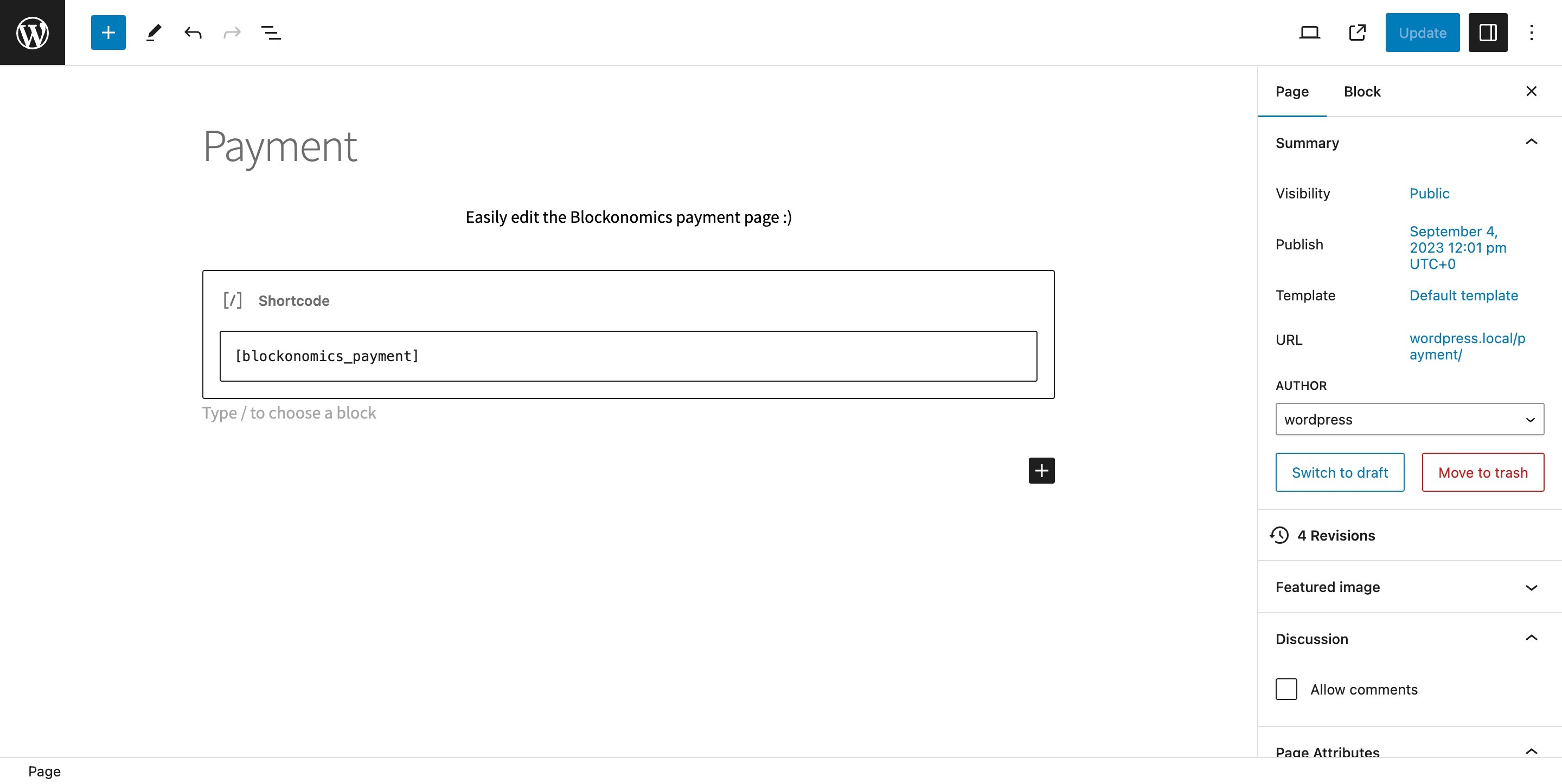
- Navigate to Pages, then All pages and click on Payment — Blockonomics Payment Page to Edit it.
- You should be able to see a page like this below:
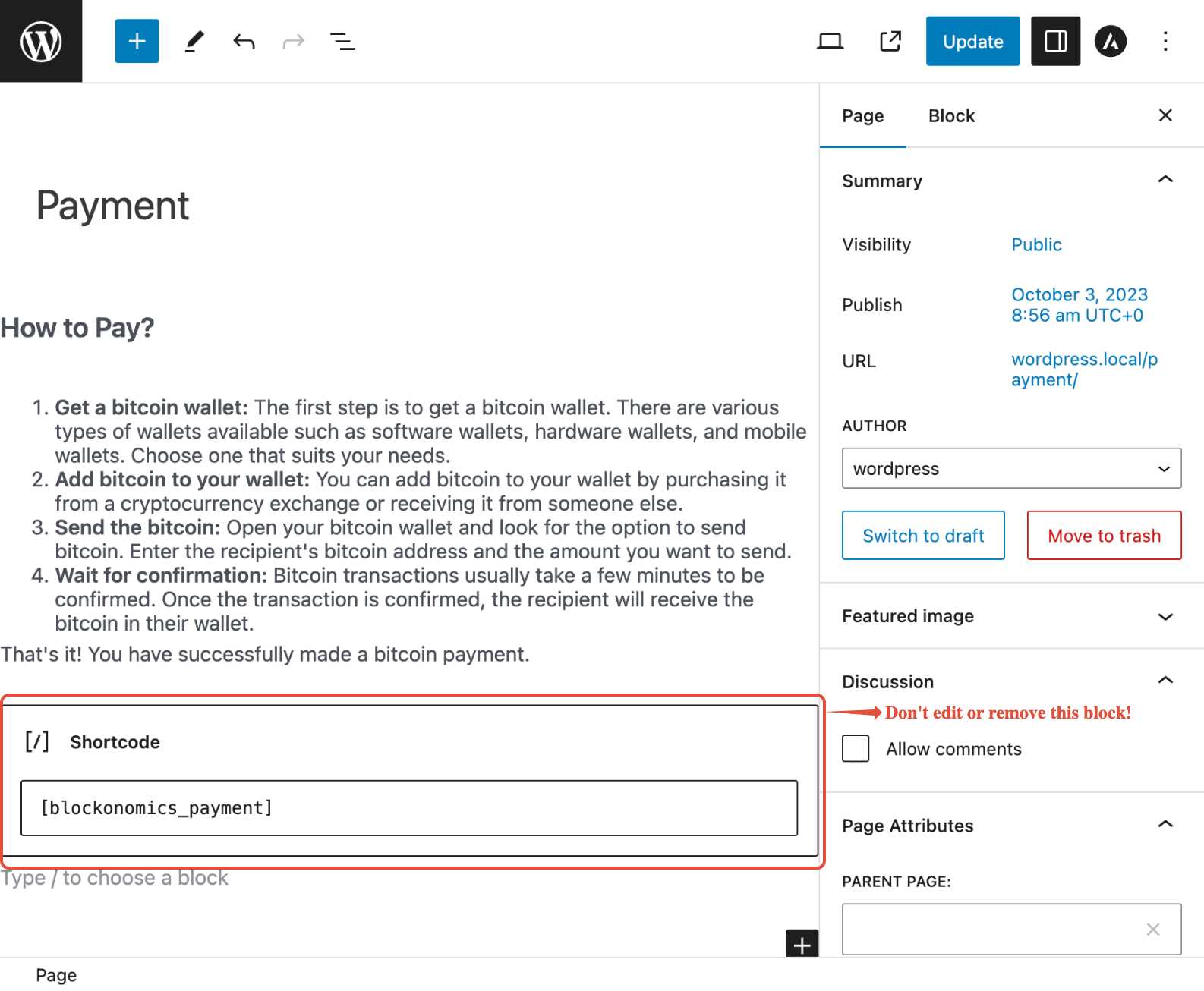
- To add a paragraph with instructions, create a WordPress Paragraph Block above the blockonomics_payment shortcode and type in your information as shown below:
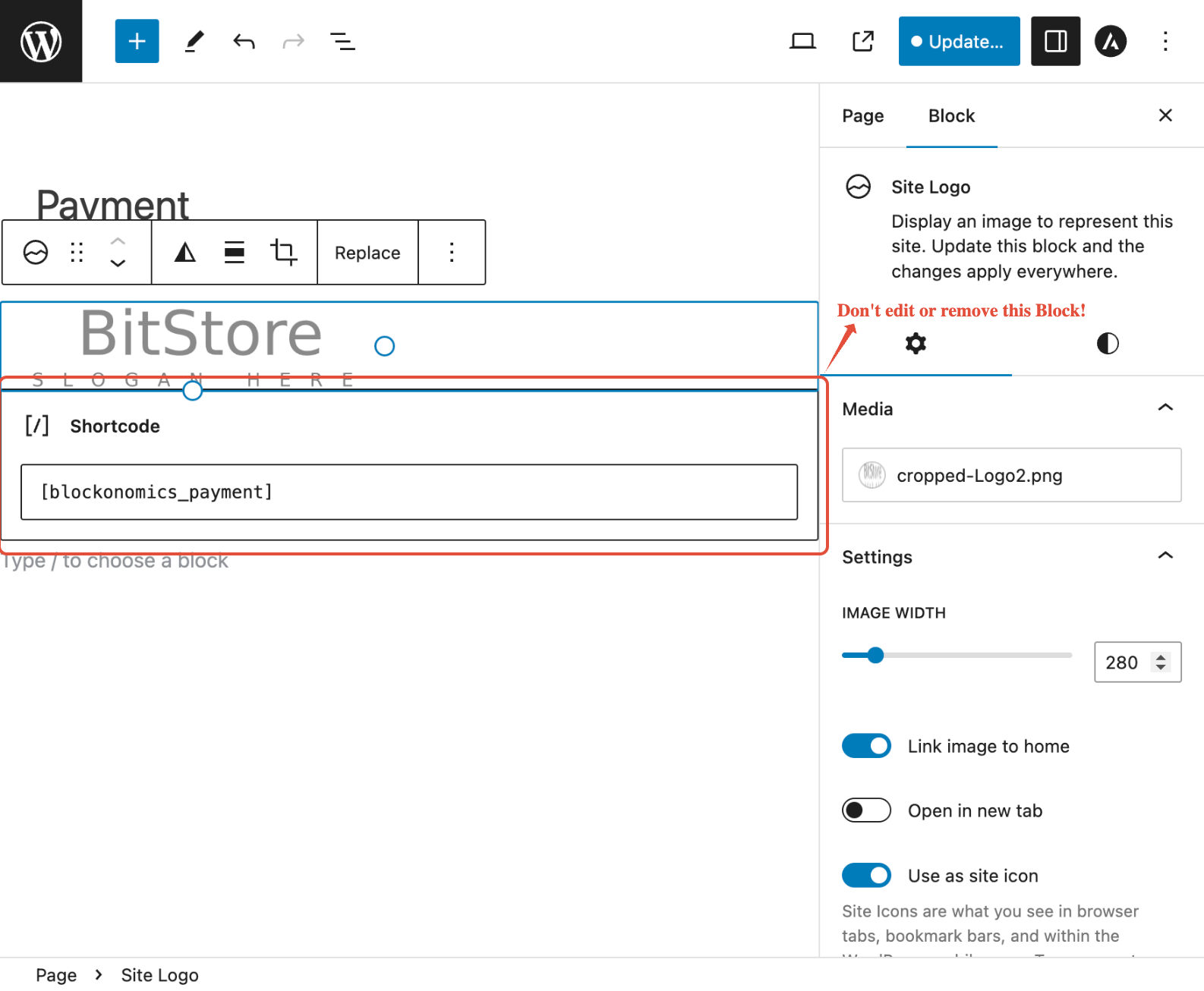
- To add a logo to your payment page, create a WordPress Logo Block above the blockonomics_payment shortcode and upload your photo as show in image below:
- That's it! Once you have completed editing the page, your custom Blockonomics payment page will now be used during checkout.
FAQs
How do I add Additional CSS to my WordPress Site?
You can add Additional CSS styles in WordPress by following the steps mentioned below:
- Open WordPress Site Editor by going to WordPress Admin > Appearance > Editor. Open "Styles" and click on Edit button next to Styles.
- In the Styles Editing menu on right, click on "Additional CSS".
- Now you can add any Additional CSS here to customer your Checkout Page and click on "Save" to apply those changes.


How to change appearance of specific component on Checkout Page?
By getting the "id" of the component you want to change appearance of, you can easily add additional CSS to do so. You can get "id" by right clicking on the component, selecting "Inspect" and copy the value of "id" field from that component as shown below.

How to make sure that entire address is visible in Checkout Page?
If don't want your customers to have to scroll to the right in Bitcoin Address input field to see entire address, add following Additional CSS in styles in your WordPress site editor:
html .bnomics-copy-container {
    width: 150%;
}
If this doesn't work, try adding following CSS to change text size in Bitcoin Address input field while keeping default width:
#bnomics-address-input {
    font-size: 9px;
}